

ChatGPT Prompt for Realistic Photos: 10 Examples
A useful ChatGPT prompt for realistic photos describes a scene a camera could plausibly capture. Tell ChatGPT who or what is in the frame, where the scene takes place, how it is lit, and which details should remain natural. You can start with a short prompt, then fix the specific part of the result that looks wrong.
ChatGPT can create an image from a written description or edit a photo you upload. Those are different jobs. If the result must look like you or show a real product accurately, start with a suitable reference image and inspect the output carefully. OpenAI’s image instructions explain both creation and editing.
Key Takeaways
A Simple Prompt Formula That Works
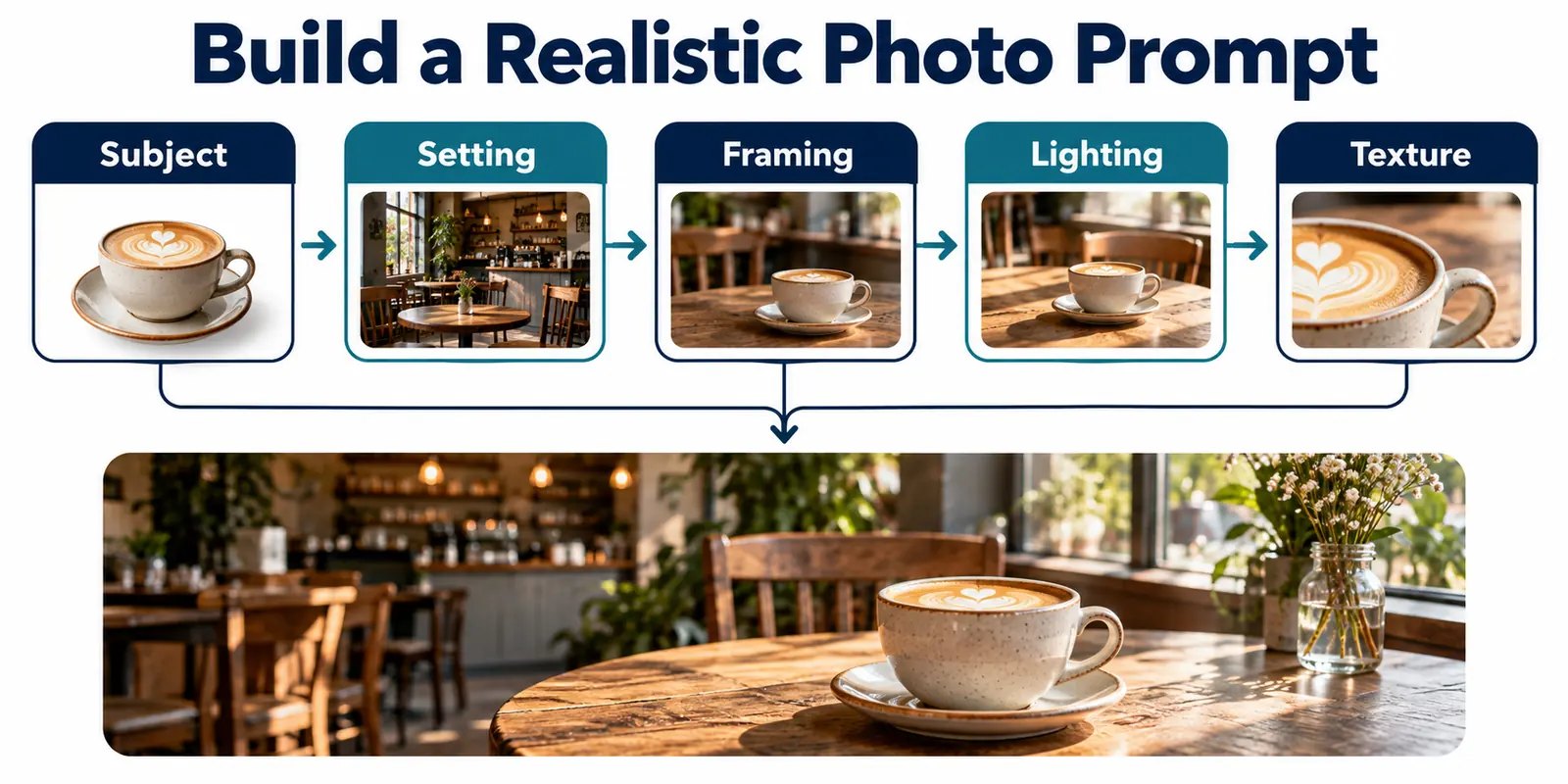
Start with this sentence pattern: “Create a photorealistic photograph of [a specific scene], framed [how], lit by [a believable source], with [important natural details], for [intended use].” Then add one or two constraints that matter to you, such as a quiet background or room for a headline.
For example, instead of asking for “an ultra-realistic woman in a café,” ask for a candid, waist-up photograph of an adult reading at a small café table. Place her near a window on an overcast afternoon, keep the street visible behind her, and request natural skin texture and an unposed expression. The second version gives ChatGPT decisions it can act on.
OpenAI’s image-prompt guide recommends clear details about purpose, subject, setting, style, framing, and lighting. It also recommends small, targeted revisions after the first result.
10 ChatGPT Prompts for Realistic Photos
Copy any example below into ChatGPT and change the scene details to suit your project. These prompts are starting points, so review the result and request a focused correction when needed.
1. Natural Professional Headshot
Create a photorealistic head-and-shoulders portrait of a fictional adult professional in a quiet office. Frame the person at eye level with relaxed shoulders and a friendly, natural expression. Use soft daylight from a window on the left, a gently blurred office background, accurate skin texture, and true-to-life colors. Leave enough room around the face for a square profile crop. Avoid heavy retouching and glossy skin.
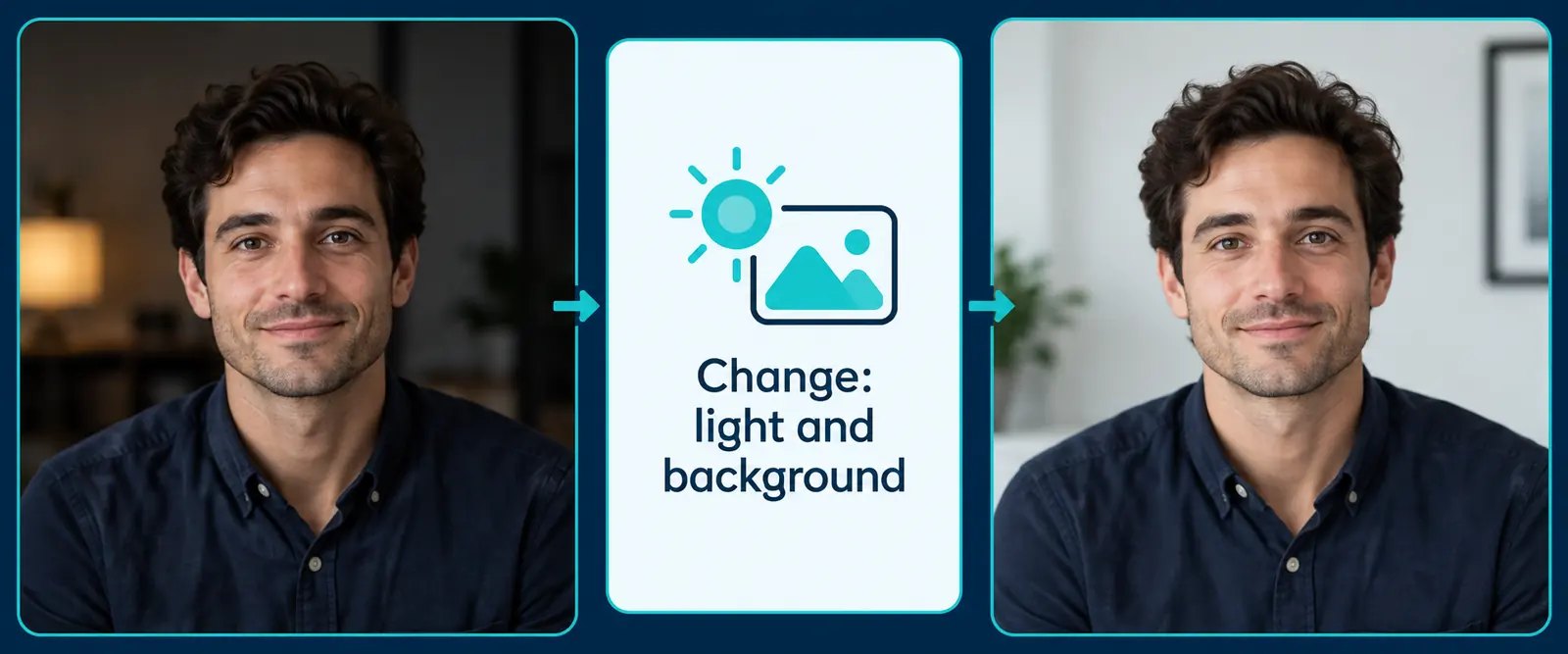
If you need a headshot of yourself, upload a clear photo and ask for a restrained edit to its lighting, background, and crop. Compare the result with the original before publishing; an instruction to preserve your likeness is useful, but it is not a guarantee.
2. Casual Phone Selfie
Create a photorealistic front-camera selfie of two fictional adult friends seated at an outdoor café in late afternoon. Use an arm’s-length viewpoint, a slightly imperfect crop, natural expressions, and daylight softened by a nearby awning. Keep the background recognizable without making every detail sharp. Make clothing, hair, skin texture, and shadows look ordinary and believable, with no beauty-filter finish.
An iPhone-style selfie prompt works best when it describes the viewpoint and casual conditions rather than only naming a phone. Slightly uneven framing can suit the scene, but distorted faces or hands still need correction.
3. Candid Street Portrait
Create a photorealistic candid photograph of a fictional adult carrying a paper grocery bag along a neighborhood sidewalk after light rain. Frame the person from mid-thigh upward at eye level, slightly off-center, as if photographed during an ordinary walk. Use an overcast sky, muted storefront reflections, natural fabric folds, and modest background motion. Keep the person’s expression unposed and the street details physically consistent.
A clear action makes this more specific than a generic “person in a city” prompt. After generation, inspect the bag handle, walking posture, storefront lettering, and reflections.
4. Small Product Photograph
Create a photorealistic product photograph of an unbranded amber glass hand-soap bottle on a clean bathroom counter. Frame it at a three-quarter angle with the whole bottle visible. Use soft morning window light, a subtle shadow on the counter, realistic reflections in the glass, and a lightly out-of-focus tiled background. Do not add a label, logo, extra bottle, or text.
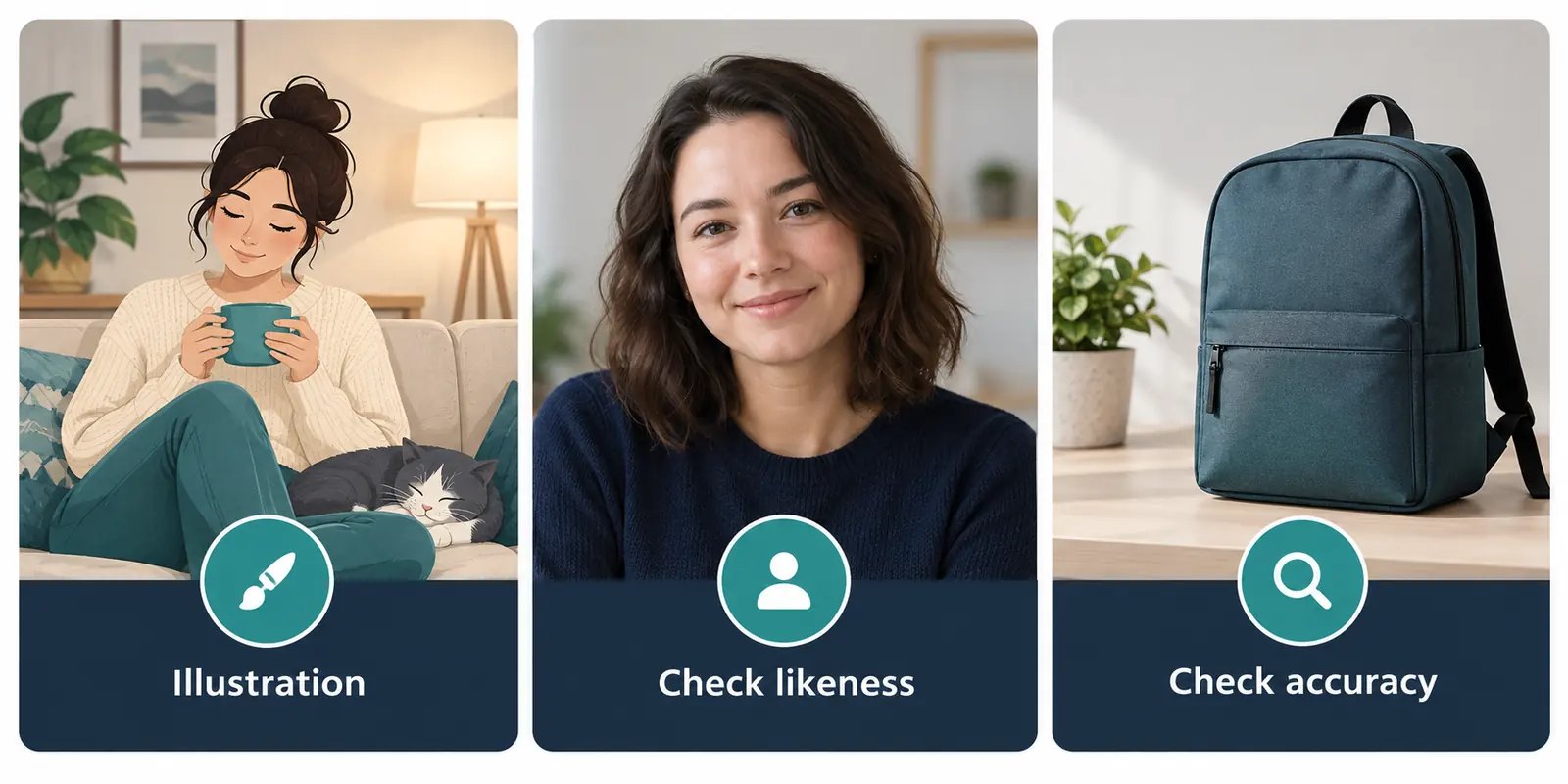
Use a real product photo as your reference when packaging accuracy matters. A generated image may look convincing while changing a cap, label, color, or other detail a customer needs to see.
5. Food Photograph
Create a photorealistic overhead photograph of a bowl of tomato soup beside a torn piece of crusty bread on a modest kitchen table. Use soft daylight from one side, a practical ceramic bowl, visible soup texture, a few natural crumbs, and restrained color. Keep the serving believable and leave some empty tabletop around the dish. Avoid exaggerated steam, perfect symmetry, and decorative ingredients that are not part of the meal.
Food looks more credible when the setting and serving make sense together. Check utensils, plate edges, and any ingredient you would need to represent accurately.
6. Lived-In Room
Create a photorealistic wide photograph of a compact living room on a cloudy morning. Show a fabric sofa, a small side table, a reading lamp, and a folded throw, with clear walking space between the furniture. Use natural window light and gentle shadows that agree with the window position. Preserve realistic room dimensions, straight architectural lines, and varied fabric textures. Avoid a showroom-perfect arrangement.
Rooms often look wrong when furniture scale, window light, or perspective conflicts. I would check those three things before asking for more decorative detail.
7. Outdoor Travel Scene
Create a photorealistic landscape photograph of a quiet mountain trail shortly after sunrise. Include a narrow path in the foreground, low shrubs, distant ridges softened by atmospheric haze, and sunlight entering from the right. Use natural colors and a wide viewpoint with a clear sense of distance. Avoid invented signs, impossible terrain, and an overly saturated sky.
If a scene must depict a particular real place, use a reliable reference and verify recognizable landmarks. A plausible landscape image should not be treated as a documentary photograph of that location.
8. Pet Portrait
Create a photorealistic photograph of a fictional brown dog resting beside a living-room window. Frame the dog from a low, eye-level viewpoint with its face in clear focus and the room softly receding behind it. Use gentle afternoon light, believable fur direction, natural paw anatomy, and subtle reflections in the eyes. Keep the pose relaxed and avoid accessories.
For your own pet, upload a good reference photo and specify distinctive markings. Check the generated face and coat pattern against the source rather than assuming the first version is accurate.
9. Hands at Work
Create a photorealistic close-up photograph of an adult craftsperson repairing a worn leather bag at a wooden workbench. Show both hands clearly, one holding the bag steady and the other guiding a needle through a seam. Use a single soft work light, realistic leather grain, ordinary tools, and a practical working posture. Keep the number and placement of fingers correct; avoid extra tools and unreadable labels.
This prompt gives the hands a clear task, which makes errors easier to spot. If the bag looks good but a finger is wrong, ask ChatGPT to correct that area while keeping the rest of the composition.
10. Portrait Edited From an Uploaded Photo
Edit the photo I uploaded into a natural, waist-up professional portrait. Preserve my recognizable facial features, skin tone, hairline, and overall proportions. Improve the lighting with soft daylight from the left and replace the background with a simple, believable office wall. Keep my expression natural and my skin texture visible. Do not change my age, body shape, or clothing. Leave room for a square crop.
Only use this prompt after attaching a photo you have the right to use. OpenAI advises using a reference for real-person likeness and obtaining permission to use someone else’s likeness.
Why Some “Ultra Realistic” Prompts Still Look Artificial
Adding “8K,” “masterpiece,” and “ultra realistic” repeatedly does not tell ChatGPT where the light comes from or what a person is doing. A believable image needs a coherent scene. One window should not cast shadows in conflicting directions, and a casual phone selfie should not look like a highly retouched studio campaign.
Camera language can help you communicate a photographic style, but treat it as guidance. OpenAI’s image-generation prompting guide says phrases such as “photorealistic” and “iPhone photo” can help, while detailed camera specifications may be interpreted loosely.
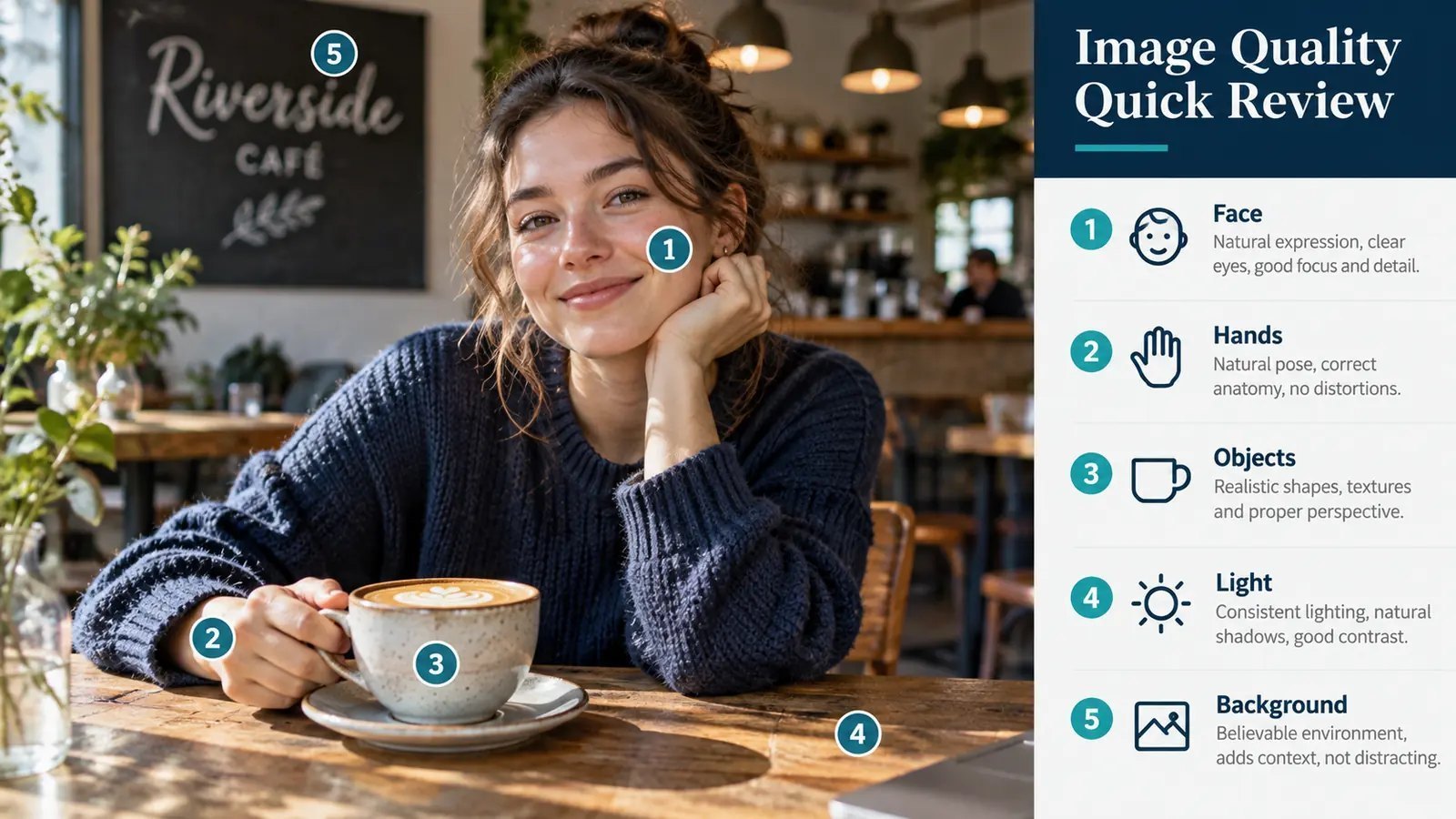
Use this quick check before accepting an image:
| If you see… | Try this next instruction |
|---|---|
| Smooth, waxy skin | “Keep natural skin texture and reduce retouching.” |
| Unclear lighting | “Use one soft window as the main light source from the left.” |
| Warped fingers or objects | “Correct the hands and the object they hold; preserve the rest.” |
| A generic background | “Place the subject in a specific, modest setting with two relevant details.” |
| Too much blur | “Keep the subject sharp and retain recognizable background context.” |
| Changed product details | “Use the uploaded product photo as reference and preserve its shape and packaging.” |
TechMezz’s guide to making an image look less AI-generated covers additional visual details to inspect. For photography, the most useful habit is to name the visible problem instead of asking ChatGPT to “make it better.”
How to Improve a Photo Without Starting Over
Start by deciding whether the main composition works. If it does, request one targeted edit at a time: soften the light, repair a hand, reduce skin smoothing, or simplify the background. OpenAI’s ChatGPT image-editing instructions describe both conversational edits and selecting a specific area to change.
Keep preservation instructions short and precise. For example: “Correct the hand holding the mug. Keep the person, expression, café, crop, and lighting as they are.” If a later edit changes the whole scene, return to the version with the stronger composition and make a narrower request.
Use Realistic Images Responsibly
A photorealistic result can be useful for a concept, blog illustration, or fictional scene. It should not be presented as documentary evidence of a real event, an accurate photograph of a product it does not match, or an authentic portrait of someone who did not consent. The more a viewer may rely on an image as proof, the more clearly its origin and accuracy matter.
If you publish generated images on a website, give each one a descriptive filename and ALT text that reflects what it actually shows. Google’s image guidance explains that surrounding page content and ALT text help describe an image to Search. For more on choosing a suitable image file type, see TechMezz’s vector versus raster guide.
Frequently Asked Questions
Can ChatGPT generate photo-realistic images?
Yes. ChatGPT can create images from text and edit uploaded images, including images with a photographic style. The result still needs a visual check, especially when likeness, product accuracy, hands, or readable details matter.
What are good ChatGPT prompts for photos?
Good prompts describe a particular scene, its framing, a believable light source, and the details that matter to the intended use. Start with one of the complete examples above, then change the subject and setting to fit your own idea.
How do I prompt ChatGPT for realistic images?
Ask for a photorealistic photograph, then specify what the camera sees and how the scene is lit. Add natural texture and one or two practical constraints, such as “keep the entire product visible” or “leave space for a square crop.”
How can I improve photo quality in a ChatGPT prompt?
First, identify what “quality” means for that image: sharper subject detail, better light, accurate anatomy, or a cleaner composition. Request the specific improvement and say which parts of an existing image should stay the same.
What is a good ChatGPT realistic iPhone selfie prompt?
Describe an arm’s-length front-camera view, ordinary daylight, a casual expression, and a plausible setting. Ask for natural texture and a slightly informal crop, then check that faces and hands remain anatomically convincing.
Conclusion
The best ChatGPT prompt for realistic photos gives ChatGPT a believable photographic situation and a clear purpose. Choose one example above, change its scene details, and inspect the first result before making a focused edit. A convincing style is useful, but accuracy matters whenever the image represents a real person, place, or product.